Documentation

querido

querido (Spanish): dear, beloved

Also: queri-do — your data is dear to you, and you want to query it. qdo = query, do.

qdo is an agent-first data exploration CLI that turns one-off investigation into reusable team knowledge.

Why qdo

Most tools let you query data. qdo lets you accumulate understanding of data — so every subsequent investigation, by you, a teammate, or a coding agent, is faster and more correct than the last.

The product surface looks ordinary: catalog, context, profile, query. The asset is the compounding loop those commands form:

discover ─► understand ─► capture ─► answer ─► hand off
catalog     context       metadata    query     report / bundle
                          values        ▲
                            │           │
                            └── auto-merged into next context / quality ──┘

A qdo values --write-metadata -c mydb -t orders -C status run today sharpens tomorrow’s qdo context, which sharpens next week’s qdo quality (enum violations auto-flagged), which a teammate can pull down as a qdo bundle and have the full picture without redoing the work. No LLMs inside qdo — the agent brings the brain; qdo brings the memory and the map.

For the full orientation (what qdo is, what it deliberately isn’t, invariants that keep it that way), see DIFFERENTIATION.md.

Install

Pre-built wheels are available from GitHub Releases. Requires Python >= 3.12 and uv.

Install globally so the qdo command is always available:

uv tool install 'querido @ https://github.com/curtisalexander/querido/releases/download/v0.1.0/querido-0.1.0-py3-none-any.whl'

With optional backends:

uv tool install 'querido[duckdb] @ https://github.com/curtisalexander/querido/releases/download/v0.1.0/querido-0.1.0-py3-none-any.whl'

uv tool install 'querido[snowflake] @ https://github.com/curtisalexander/querido/releases/download/v0.1.0/querido-0.1.0-py3-none-any.whl'

With all optional backends:

uv tool install 'querido[all] @ https://github.com/curtisalexander/querido/releases/download/v0.1.0/querido-0.1.0-py3-none-any.whl'

To upgrade later (update the version in the URL):

uv tool install --upgrade 'querido @ https://github.com/curtisalexander/querido/releases/download/v0.1.0/querido-0.1.0-py3-none-any.whl'

To uninstall:

uv tool uninstall querido

With uvx (one-off runs)

Run without installing:

uvx \
  --from 'querido @ https://github.com/curtisalexander/querido/releases/download/v0.1.0/querido-0.1.0-py3-none-any.whl' \
  qdo --help

From source

# Development — run via uv from the project directory
uv sync
uv run qdo --help

# Global install from local checkout
uv tool install .
qdo --help

Optional backends

SQLite support is always available (stdlib). Other backends are opt-in:

uv pip install 'querido[duckdb]'     # DuckDB + Parquet support
uv pip install 'querido[snowflake]'  # Snowflake support
uv pip install 'querido[tui]'        # Interactive TUI (qdo explore)
uv pip install 'querido[all]'        # Everything

Quick Start

The opinionated qdo workflow is:

discover -> understand -> capture -> answer -> hand off

# 1. Discover what exists
qdo catalog -c my-db

# 2. Understand one table in depth
qdo context -c my-db --table orders

# 3. Capture what you learned
qdo metadata init -c my-db --table orders
qdo metadata suggest -c my-db --table orders --apply
qdo metadata undo -c my-db --table orders --dry-run

# 4. Answer a question and verify it
qdo query -c my-db --sql "select status, count(*) from orders group by 1"
qdo assert -c my-db --sql "select count(*) from orders where status is null" --expect 0

# 5. Hand it off
qdo report table -c my-db --table orders -o orders-report.html

Need more detail while investigating? Use inspect, preview, profile, quality, values, dist, joins, and diff as drill-down tools inside that workflow.

The core data-inspection commands, plus many management/reference commands, support structured output via --format json (and some also support csv, markdown, html, or yaml). Artifact-oriented commands such as report table still write files rather than emitting a shared stdout payload. Output goes to stdout; spinners go to stderr so piping is safe:

qdo context -c my-db -t orders -f json | jq '.columns[].name'
qdo catalog -c my-db -f json > schema.json
qdo profile -c my-db -t orders -f csv > stats.csv

If you are recording a session, query and export can reuse SQL from a prior query step. Record the source step with -f json so --from has the canonical SQL to replay:

QDO_SESSION=scratch qdo -f json query -c my-db --sql "select * from orders where status = 'pending'"
qdo query  -c my-db --from scratch:1
qdo export -c my-db --from scratch:1 -o pending-orders.csv

Sessions can also be replayed into a fresh session when you want to rerun an investigation end-to-end:

qdo session show scratch
qdo session replay scratch
qdo session replay scratch --into rerun-scratch

Commands

Start Here — promoted workflow

qdo catalog   -c my-db                       # discover tables and row counts
qdo context   -c my-db -t orders              # schema + stats + sample values in one call
qdo metadata  init -c my-db -t orders         # create metadata YAML
qdo metadata  suggest -c my-db -t orders --apply  # capture deterministic additions
qdo query     -c my-db --sql "select ..."     # answer a question
qdo assert    -c my-db --sql "..." --expect 0 # verify an invariant
qdo report    table -c my-db -t orders        # single-file hand-off report
qdo bundle    export -c my-db -t orders -o bundle.zip  # portable knowledge bundle
qdo query     -c my-db --from scratch:3       # reuse SQL from a recorded query step

Investigate Deeper — specialist tools

qdo inspect   -c my-db -t orders              # column types, nullable, PK, row count
qdo preview   -c my-db -t orders -r 20        # see rows
qdo profile   -c my-db -t orders --top 10     # stats + top frequent values
qdo profile   -c my-db -t orders --quick      # fast: nulls + distinct only (auto for 50+ cols)
qdo profile   -c my-db -t orders --classify   # classify columns by category (implies --quick)
qdo dist      -c my-db -t orders -C amount    # histogram or value frequencies
qdo values    -c my-db -t orders -C status    # all distinct values for a column
qdo quality   -c my-db -t orders              # null rates, uniqueness, anomalies
qdo freshness -c my-db -t orders              # detect temporal columns and recency
qdo diff      -c my-db -t orders --target v2  # compare two table schemas
qdo joins     -c my-db -t orders              # suggest likely join keys
qdo assert    -c my-db --sql "..." --expect 0 # validate invariants (CI-friendly)
qdo explain   -c my-db --sql "select ..."     # query execution plan
qdo pivot     -c my-db -t orders -g region -a "sum(amount)"  # GROUP BY helper
qdo export    -c my-db -t orders -e csv -o o.csv             # export to csv/tsv/json/jsonl

Query — run and validate SQL

qdo catalog   -c my-db                                       # all tables and columns
qdo catalog   -c my-db --pattern order                       # filter tables/columns by name
qdo query     -c my-db --from scratch:last                   # rerun the last recorded query step
qdo pivot     -c my-db -t orders -g region -a "sum(amount)"  # GROUP BY
qdo explain   -c my-db --sql "select ..."                    # query execution plan
qdo export    -c my-db --from scratch:7 -o out.csv           # export results from saved query SQL

Generate — scaffold SQL and docs

qdo sql select   -c my-db -t orders           # SELECT scaffold
qdo sql ddl      -c my-db -t orders           # CREATE TABLE DDL
qdo sql scratch  -c my-db -t orders           # TEMP TABLE + sample INSERTs
qdo template     -c my-db -t orders           # documentation template
qdo view-def     -c my-db --view my_view      # SQL definition of a view

Manage — connections, cache, metadata

qdo config add  --name mydb --type duckdb --path ./my.duckdb
qdo config list
qdo config clone --source sf-base --name sf-finance --database FINANCE_DB
qdo config test mydb
qdo config remove --name old-db
qdo config column-set save -c mydb -t orders -n default --columns "id,status,amount"
qdo config column-set list
qdo profile -c mydb -t orders --column-set default  # reuse saved selection
qdo cache sync  -c my-db
qdo completion show fish > ~/.config/fish/completions/qdo.fish

# Metadata (business context for AI-assisted SQL)
qdo metadata init    -c my-db -t orders       # create metadata YAML
qdo metadata edit    -c my-db -t orders       # open in $EDITOR
qdo metadata show    -c my-db -t orders       # read back metadata
qdo metadata list    -c my-db                 # completeness overview
qdo metadata search  -c my-db "fulfillment"   # lexical search across stored metadata
qdo metadata refresh -c my-db -t orders       # re-profile, keep human fields
qdo metadata undo    -c my-db -t orders       # restore the last qdo-managed metadata snapshot

Snowflake — platform-specific commands

qdo snowflake semantic -c prod -t my_table              # Cortex Analyst YAML
qdo snowflake lineage -c prod --object DB.SCHEMA.TABLE  # Snowflake GET_LINEAGE
qdo sql task -c prod -t my_table                        # task template
qdo sql procedure -c prod -t my_table                   # stored procedure template

Interactive — TUI

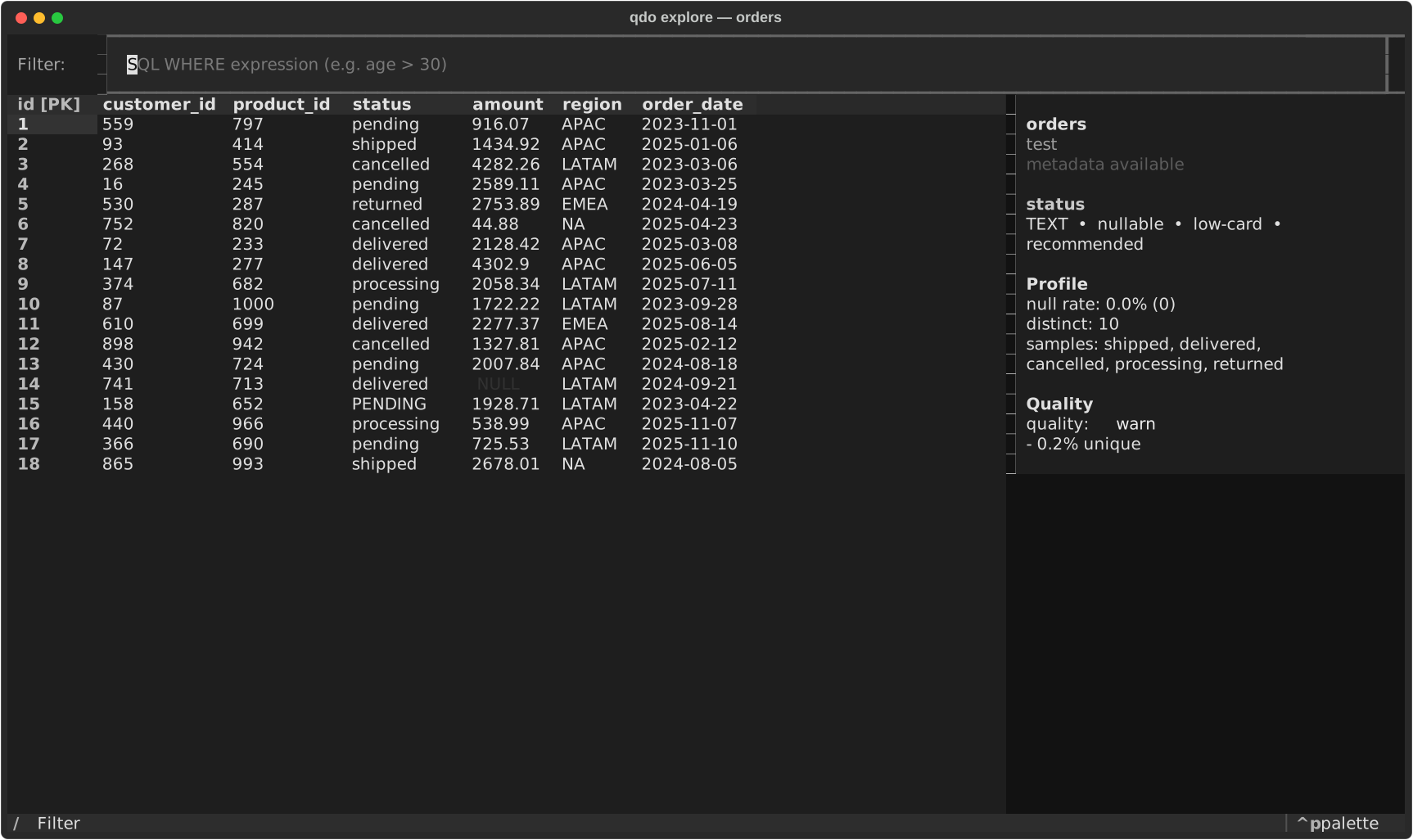
qdo explore -c my-db -t orders               # terminal UI (requires querido[tui])

qdo explore now includes a selected-column facts sidebar, richer status bar context, and semantic table highlighting so PKs, sorted columns, null-heavy columns, and null cells are easier to spot at a glance.

Example captures live under docs/examples/:

qdo explore sidebar example

Learn — built-in tutorials

qdo tutorial explore                 # 10-lesson compounding-loop walkthrough
qdo tutorial agent                   # 13-lesson metadata + AI-assisted SQL
qdo tutorial explore --list          # list lessons
qdo tutorial explore --lesson 5      # jump to a lesson

Parquet files

Pass the file path directly as the connection — DuckDB handles the rest:

qdo preview -c data.parquet --table data          # table name = file stem
qdo context -c data.parquet --table data          # full context
qdo catalog -c data.parquet                       # see all tables in the file

context — the quick-look command

context is the fastest way to understand a table. It returns schema, statistics, and sample values in a single database scan (DuckDB/Snowflake), or a profile scan plus frequency queries (SQLite).

qdo context -c my-db -t orders                     # rich terminal output
qdo context -c my-db -t orders -f json             # machine-readable
qdo context -c my-db -t orders --sample-values 10  # more sample values
qdo context -c my-db -t orders --no-sample         # exact stats, no row sampling

If you’ve run qdo metadata init on the table, stored descriptions, valid values, and PII flags are merged in automatically.

JSON output shape:

{
  "table": "orders",
  "dialect": "duckdb",
  "row_count": 50000,
  "table_description": "Customer orders placed through the website",
  "columns": [
    {
      "name": "status",
      "type": "VARCHAR",
      "nullable": true,
      "null_pct": 0.5,
      "distinct_count": 4,
      "sample_values": ["pending", "shipped", "delivered", "cancelled"],
      "description": "Fulfillment status",
      "valid_values": ["pending", "shipped", "delivered", "cancelled"]
    },
    {
      "name": "amount",
      "type": "DOUBLE",
      "nullable": true,
      "null_pct": 1.2,
      "distinct_count": 12543,
      "min": 0.99,
      "max": 9999.0,
      "sample_values": null
    }
  ]
}

Sampling and accuracy

Commands that scan table data (context, profile, quality) automatically sample tables over 1M rows for speed. This is a deliberate trade-off: fast approximate results by default, exact results on request.

What sampling affects:

What sampling does NOT affect:

How to tell if results are sampled:

How to get exact results:

qdo profile -c my-db -t big_table --no-sample     # full scan, exact stats
qdo context -c my-db -t big_table --no-sample      # full scan, exact context
qdo quality -c my-db -t big_table --no-sample       # full scan, exact quality
qdo profile -c my-db -t big_table --exact           # also use exact COUNT(DISTINCT)

Tuning the threshold:

The auto-sample threshold (default 1M rows) can be adjusted via the QDO_SAMPLE_THRESHOLD environment variable:

export QDO_SAMPLE_THRESHOLD=5000000   # only sample tables over 5M rows
export QDO_SAMPLE_THRESHOLD=0         # always sample (use for testing)

Wide tables (50+ columns)

Profiling tables with many columns can be slow. qdo has a tiered profiling system designed for wide tables:

# Quick mode: only null counts + distinct counts (auto-engages at 50+ columns)
qdo profile -c my-db -t wide_table --quick

# Classify columns into categories (constant, sparse, high cardinality, time, etc.)
qdo profile -c my-db -t wide_table --classify
qdo profile -c my-db -t wide_table --classify -f json   # machine-readable for agents

# Profile specific columns (full stats)
qdo profile -c my-db -t wide_table --columns "col1,col2,col3"

# Save a column set for reuse across commands
qdo config column-set save -c my-db -t wide_table -n default --columns "col1,col2,col3"
qdo profile -c my-db -t wide_table --column-set default

# Manage saved column sets
qdo config column-set list
qdo config column-set show -c my-db -t wide_table -n default
qdo config column-set delete -c my-db -t wide_table -n default

How quick mode works: At 50+ columns (configurable via QDO_QUICK_THRESHOLD), profile automatically switches to quick mode, computing only null counts, null percentages, and distinct counts. Use --no-quick to force full stats. Use --classify to group columns into practical triage categories such as constant, sparse, high-cardinality, time, measure, and low-cardinality.

TUI workflow: In qdo explore, press p on a wide table to open quick triage first. qdo pre-selects the recommended columns, pushes sparse and constant fields to the back, and lets you save the final selection as a column set before running full stats on just that subset.

Using qdo with a coding agent

qdo is designed to be useful at the keyboard for a human analyst, and equally useful as a tool for a coding agent writing SQL on your behalf.

Set up structured output once:

export QDO_FORMAT=json     # all commands output JSON — no --format flag needed

Errors also output structured JSON in this mode:

{"error": true, "code": "TABLE_NOT_FOUND", "message": "...", "hint": "..."}

Give your agent the integration docs:

Use qdo agent install from the project where your agent works. The command is available from the installed wheel, so users do not need to clone qdo just to get the agent docs.

Harness How to install
Claude Code qdo agent install skill writes skills/querido/SKILL.md plus workflow references
Continue.dev qdo agent install continue writes .continue/rules/qdo.md

You can also inspect the files without writing anything:

qdo agent list
qdo agent show skill
qdo agent show continue

Recommended agent workflow:

# 1. Discover
qdo catalog -c my-db -f json

# 2. Understand
qdo context -c my-db -t orders -f json

# 3. Load or capture prior knowledge
qdo metadata show -c my-db -t orders -f json
qdo metadata suggest -c my-db -t orders --apply

# 4. Answer and verify
qdo query -c my-db --sql "..." -f json
qdo assert -c my-db --sql "..." --expect 0 -f json

# 5. Hand off
qdo report table -c my-db -t orders -o orders-report.html

Curated example artifacts live under docs/examples, including an enriched orders metadata file and a generated sample report.

The context command is the anchor for agent workflows: it returns everything an LLM needs to write correct SQL for a table in one call, and metadata turns that understanding into durable context for later runs and other teammates.

Configuration

Connections are stored in connections.toml at your platform’s config directory:

[connections.my-db]
type = "duckdb"
path = "./analytics.duckdb"

[connections.prod]
type = "snowflake"
account = "xy12345.us-east-1"
warehouse = "ANALYTICS_WH"
database = "PROD"
schema = "PUBLIC"
auth = "externalbrowser"

[connections.prod-keypair]
type = "snowflake"
account = "xy12345.us-east-1"
user = "SVC_USER"
warehouse = "ANALYTICS_WH"
database = "PROD"
schema = "PUBLIC"
private_key_path = "~/.snowflake/rsa_key.p8"
# private_key_passphrase = "optional-passphrase"

Managing connections via CLI

qdo config add --name mydb --type sqlite --path ./data.db
qdo config add --name prod --type snowflake --account xy123 --database PROD
qdo config add --name svc --type snowflake --account xy123 --database PROD \
  --private-key-path ~/.snowflake/rsa_key.p8
qdo config list

You can also pass a file path directly: qdo preview --connection ./my.db --table users

Working with multiple Snowflake databases

In Snowflake, accessing a different database often requires a different role and warehouse. Rather than passing --database, --role, and --warehouse flags on every command, qdo uses one named connection per database context. Each connection captures the full set of credentials and session parameters needed for that database.

Quick setup with config clone — create per-database connections from a base connection, overriding only what changes:

# Start with a base connection
qdo config add --name sf-base --type snowflake \
  --account xy123.us-east-1 --user analyst \
  --warehouse COMPUTE_WH --database ANALYTICS --schema PUBLIC \
  --role ANALYST --auth externalbrowser

# Clone for other databases, overriding database/role/warehouse as needed
qdo config clone --source sf-base --name sf-finance \
  --database FINANCE_DB --role FINANCE_ROLE --warehouse FINANCE_WH

qdo config clone --source sf-base --name sf-marketing \
  --database MARKETING_DB --role MARKETING_ROLE

Use config list to see all connections at a glance — when Snowflake connections are present, the table shows dedicated columns for database, role, and warehouse:

qdo config list

Then just switch with -c:

qdo preview -c sf-finance -t transactions
qdo profile -c sf-marketing -t campaigns
qdo inspect -c sf-base -t events

This approach is intentional: each connection is self-contained and correct, so you never have to remember which role goes with which database. The config clone command makes setup fast — you only specify the fields that differ.

Shell Completions

Tab completion is available for bash, zsh, fish, and PowerShell:

# Bash — add to ~/.bashrc:
eval "$(qdo completion show bash)"

# Zsh — add to ~/.zshrc:
eval "$(qdo completion show zsh)"

# Fish — save to completions directory:
qdo completion show fish > ~/.config/fish/completions/qdo.fish

# PowerShell — add to $PROFILE:
qdo completion show powershell | Out-String | Invoke-Expression

Use qdo completion show <shell> --hint to see install instructions for a specific shell.

Development

uv run ruff check src/ tests/    # lint
uv run ruff format src/ tests/   # format
uv run ty check                  # type check
uv run pytest                    # test

Dependency updates

uv run python scripts/check_deps.py              # check for outdated deps
uv run python scripts/check_deps.py --update     # update safe packages
uv run python scripts/check_deps.py --audit      # also check for known CVEs

New releases are quarantined for 7 days (configurable with --days) before --update will apply them. This guards against supply-chain attacks by giving the community time to detect and yank compromised packages.